Yesterday I ran my third marathon, and finally came in under five hours! It was a pretty big deal for me and I paid for the effort with incapacitating leg cramps.
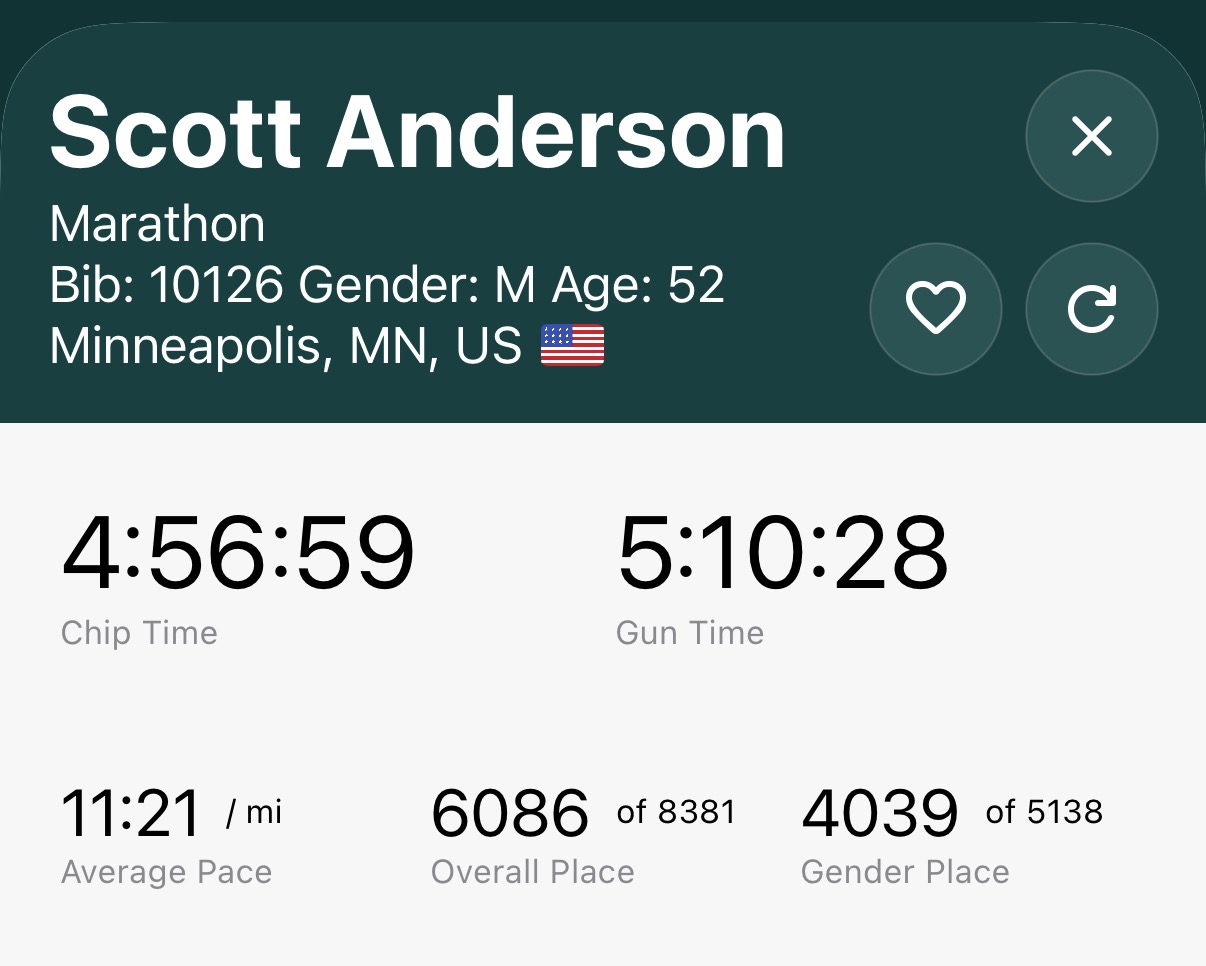
I may have more to say about the run later. (Probably not nearly as much as I did after my first marathon though.) But right now I want to talk about the Apple Watch.1
Since phones got huge, I don’t like running with them. I have cellular on my Apple Watch, so my family can find me and we can communicate without me having to bring my phone with me. The only problem is, workouts drain the watch battery faster, and having a workout running for 5 hours can really run it down.
The last marathon I did, my Apple Watch made it to the end, but died almost immediately after it was over. My wife was running the marathon too, and we needed a way to find each other when we were done, since we run at different paces.
I did a bit of research yesterday to try to avoid having this happen again, and I ended up making three changes to my settings that helped immensely.
First, and this one is probably obvious, I turned on Low Power Mode. I was worried this might mess up the workout, but it seemed fine. My distance was pretty far off, but I don’t think that was due to Low Power Mode.2 The only thing I definitely noticed that was different was that it didn’t show the hundredths of seconds on the timer, which I always think is a bit silly anyway. Worth noting: Apple devices don’t like to stay in Low Power Mode when the battery is over 20%, so when you’re turning it on, you’re given the option of how long it should stay in Low Power Mode. I chose “1 day.” It worked.
Second, and this is also something that was fairly obvious, I turned off the Always-on Display. That’s really not something I ever need, but especially while in the middle of a workout. The screen is one of the biggest power draws on any device, and even though this feature is optimized to use as little battery as possible, it still uses more power than just having the screen go dark when you’re not looking at it.
Third, something I really hadn’t thought about at all, I turned off Background App Refresh. I have absolutely no need for apps to be retrieving data while I’m running. I don’t want email and text alerts in the middle of a run, especially not when it’s an organized race. And when you don’t have your phone with you, the watch itself needs to connect to the cellular network to retrieve the data, so I imagine it’s an even bigger battery drain.
I’m pleased to say, these three steps made a huge difference. When I finished the marathon, I checked my battery level, and it was still at 40%!
One last thing to consider: to maximize the benefit of these changes, don’t wait until just before the race. I switched all of these settings right when I took the watch off the charger in the morning, when it was still at 100%. I should probably also mention, I turned on Low Power Mode on the watch itself, but I made the other changes in the Watch app on my iPhone. I assume you can also change those settings directly on the watch, but I didn’t try it.
- As a point of reference, I have an Apple Watch Series 9. The latest model as I write this is the Series 12. ↩︎
- It said I ran 26.7 miles, a half mile longer than the actual distance. I know weaving around on the course ends up adding distance, but not that much. But I’ve been having calibration issues ever since I upgraded to watchOS 27 a few weeks ago, because I haven’t carried my phone with me on a run, which — for some reason — it needs you to do to properly calibrate. I’m not sure why an OS update would require recalibration anyway. ↩︎